New — check if your vessel can carry more deadweight Carry more deadweight? Try it →

NormShip Container Planner

Stowage planning for the whole voyage, not one port.

Load, move or remove a container at any call and every later port follows. Impossible plans are caught in the background across the whole rotation, and plans go to terminals as BAPLIE.

  • Whole-rotation planning
  • BAPLIE export
  • 3D stowage view

Already a user? Watch the video tutorials in the customer area.

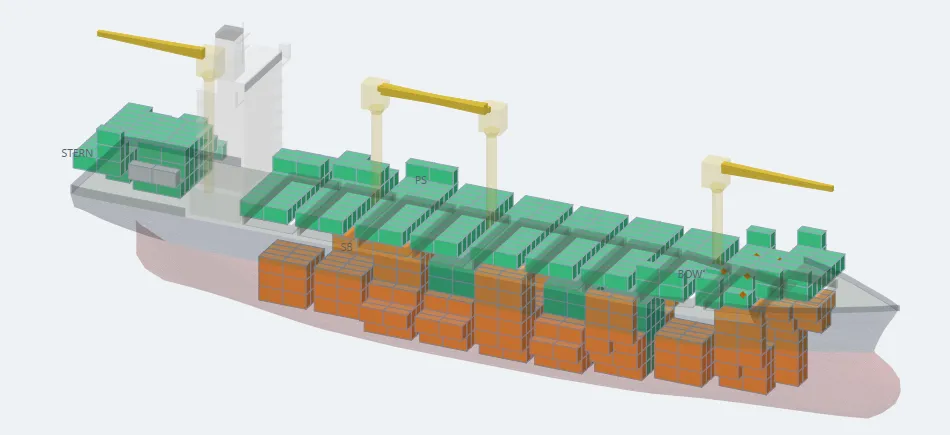
Container Planner isometric view — a feeder’s whole stowage in 3D with her cranes, coloured by port of discharge
Voyage-based planning

Load, move or remove a container at any call — the result appears at every later call automatically.

The whole voyage is checked

A problem at call 9 shows up while you are working at call 2.

Your own data

Real BAPLIE messages and the real cell plan of your ship, not a generic template.

One file, one machine

No server, no database, no online account. A plan is a single file you can send.

In the program

From the vessel model to the terminal's work list.

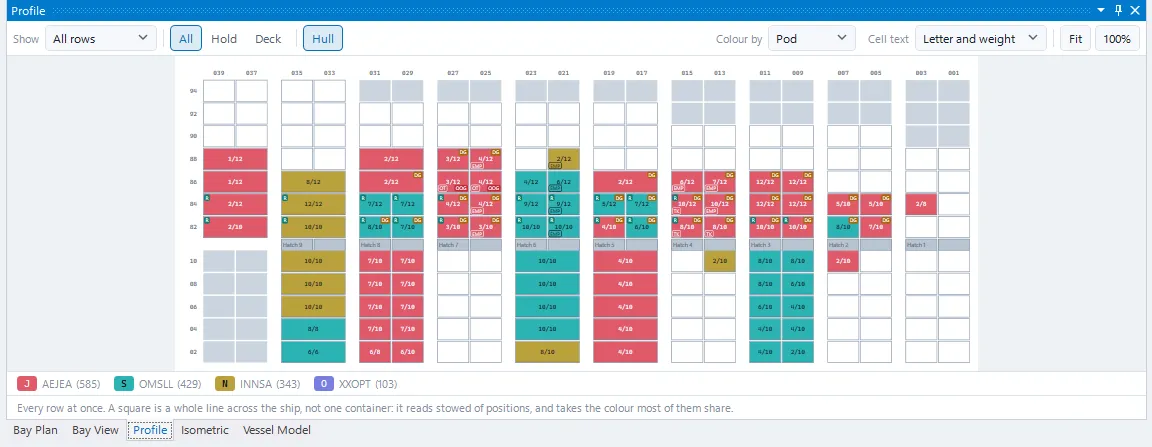
Profile view of a container feeder coloured by port of discharge
Drawings

Bay plan, profile and 3D

Work bay by bay, see the whole ship on one scan plan, check the stow in profile or turn it in 3D with the deck lifted off — X-ray shows dangerous goods, reefers or out-of-gauge boxes through the cargo. Colour by discharge port, loading port, weight or type; the printout uses the same drawing engine.

Port rotation strip with coloured cards for each call
Voyage

The rotation, call by call

Every call in its own colour, with an arrival and a departure condition. Click a call and the program moves there; add, remove, reorder or skip calls and the voyage is rebuilt. A 500-container operation is one Ctrl+Z.

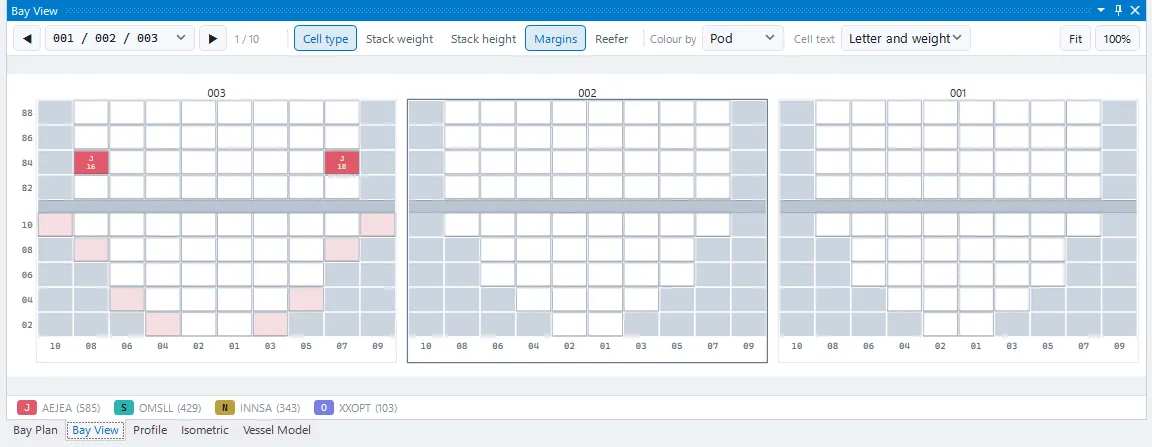
Bay view of three bays showing cell types and margins
Vessel model

Your ship, cell by cell

Generate a ship from its main particulars, then correct cells, reefer plugs, DG permissions and 20/40 ft restrictions in the drawing you plan in. Stack weights are pasted from the cargo securing manual, and a BAPLIE opens even without a model.

Isometric 3D view of a feeder with her cranes, the stowage coloured by port of discharge
Stowing

Drag, drop and Fill ship

Every drop is previewed — green accepted, amber warning, red refused with the reason. Fill ship stows the waiting cargo eight ways, scores each for balance, centre of gravity, rotation and port time, and recommends one. IMDG, the Document of Compliance and live reefers are musts, never scores; padlocked boxes are never moved.

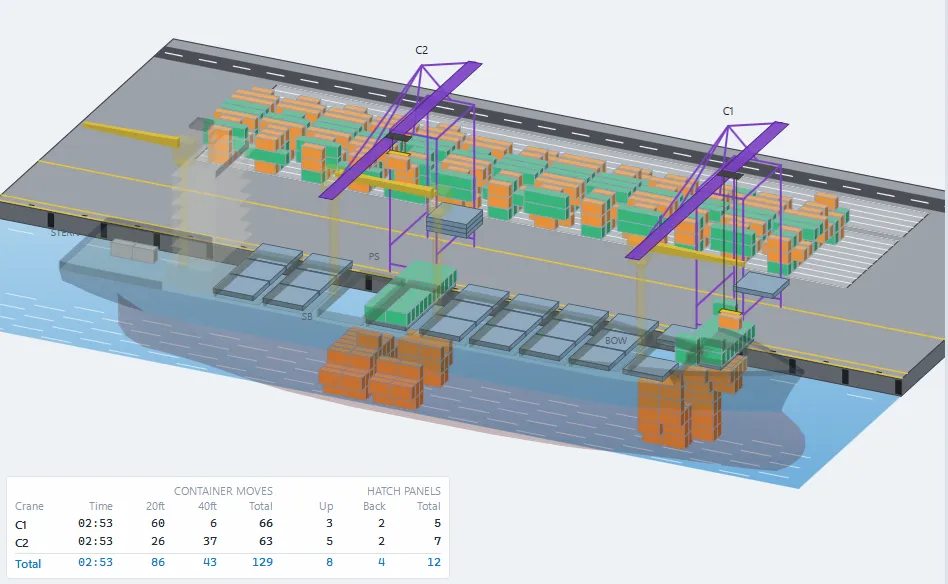
Port simulation in 3D — two cranes working a feeder alongside, cargo waiting on the quay and the move and hatch-panel counters per crane
Port

Port simulation

The call played as the terminal’s cranes would work it — hatch panels to the quay and back, boxes off and on — naming the crane that sets the time alongside. Time, moves and panel lifts are counted per crane. An estimate; the plan is not changed.

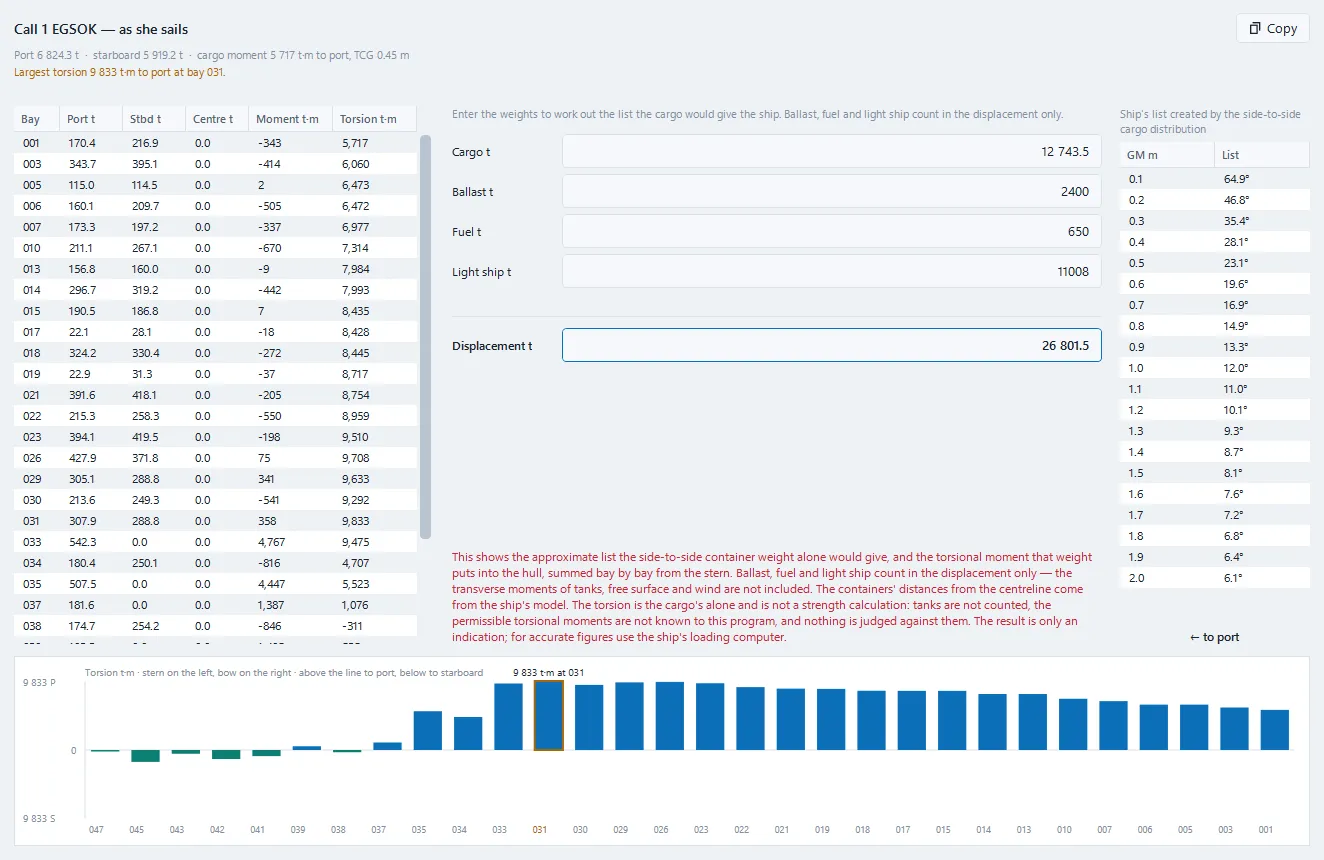
Transversal weight distribution — port and starboard tonnes per bay, list against GM, and the torsion chart along the ship
Weights

Transversal weight & torsion

Port, starboard and centreline tonnes per bay, the cargo’s moment and the list it gives at GM 0.1 – 2.0 m or at the ship’s own GM. The torsional moment is charted along the ship, so a level but twisted stow shows. An indication — the loading computer decides.

New in Container Planner

Dangerous goods at a glance, a tidier stow.

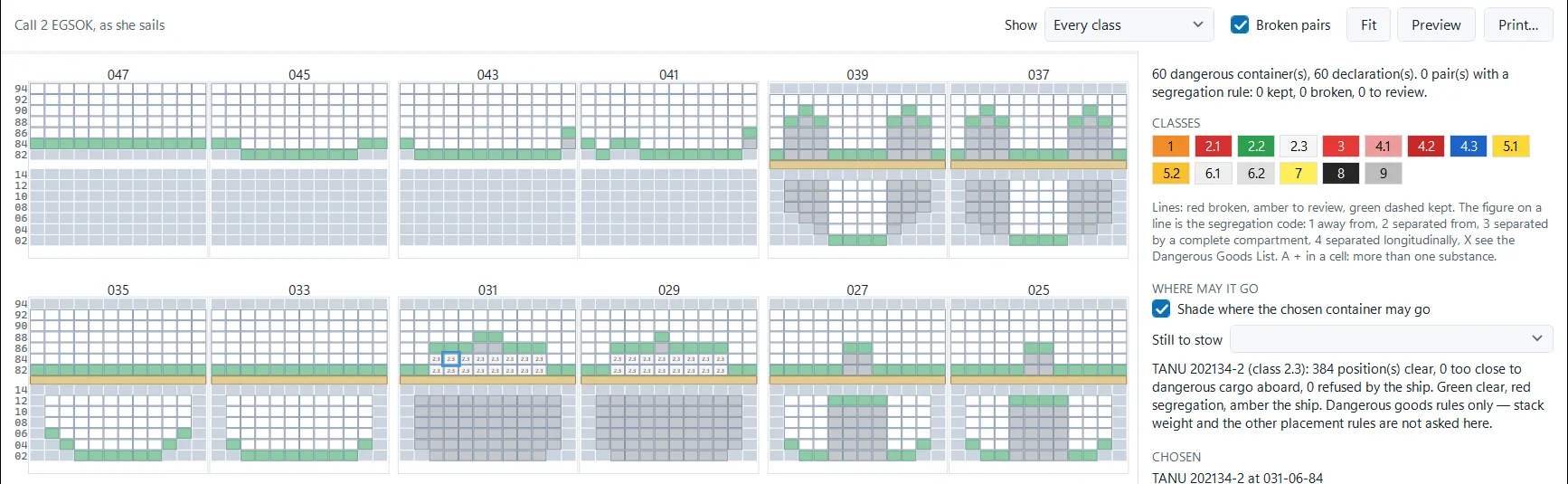
Dangerous goods map — every bay of the ship, the class colours, and the positions where the chosen container may go shaded green
Dangerous goods

Dangerous goods map

The whole ship on one page: every dangerous container in its class colour, every segregation pair drawn red, amber or green with its code. Click a box for its pairs, or shade every empty position where it may go. Prints on one page.

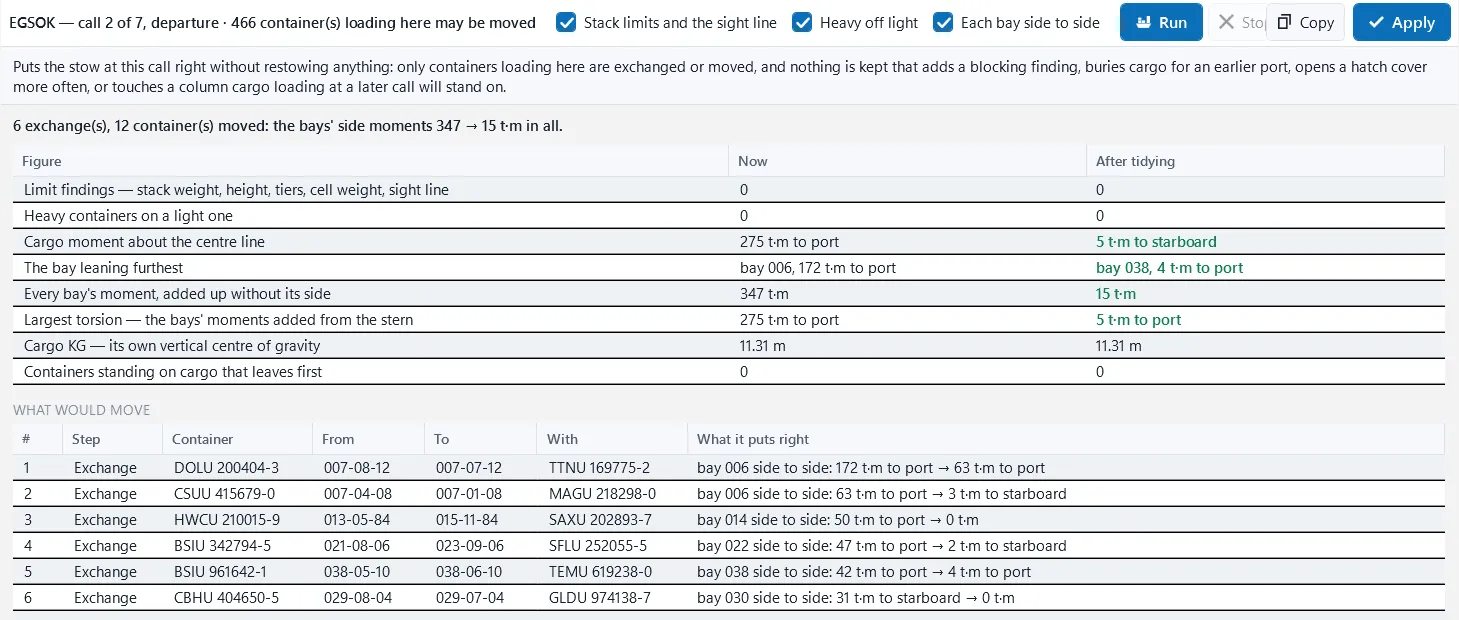
Tidy the stow — figures now and after tidying, the side moments brought from 347 to 15 t·m, and the six exchanges that do it
Stowing

Tidy the stow

Puts a call right without restowing: stack limits, sight line, heavy on light and side-to-side balance, by moving only the boxes loading there. Figures before and after, each move explained, nothing written until Apply.

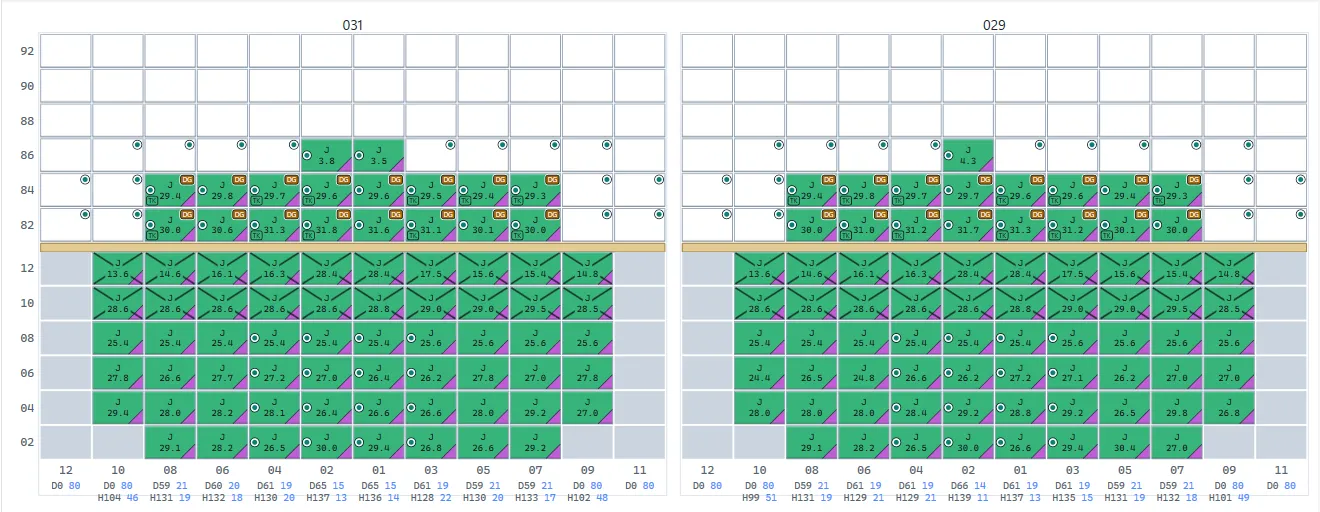
Paired bay view — bays 031 and 029 side by side, 40 ft containers crossed corner to corner, weights and DG marks in each cell
Drawings

Paired bays

The two 20 ft bays of a 40 ft bay side by side, 40 and 45 ft cells crossed. Drag and drop and the right-click menu work here too, and toolbars fold into drop-downs on a small screen.

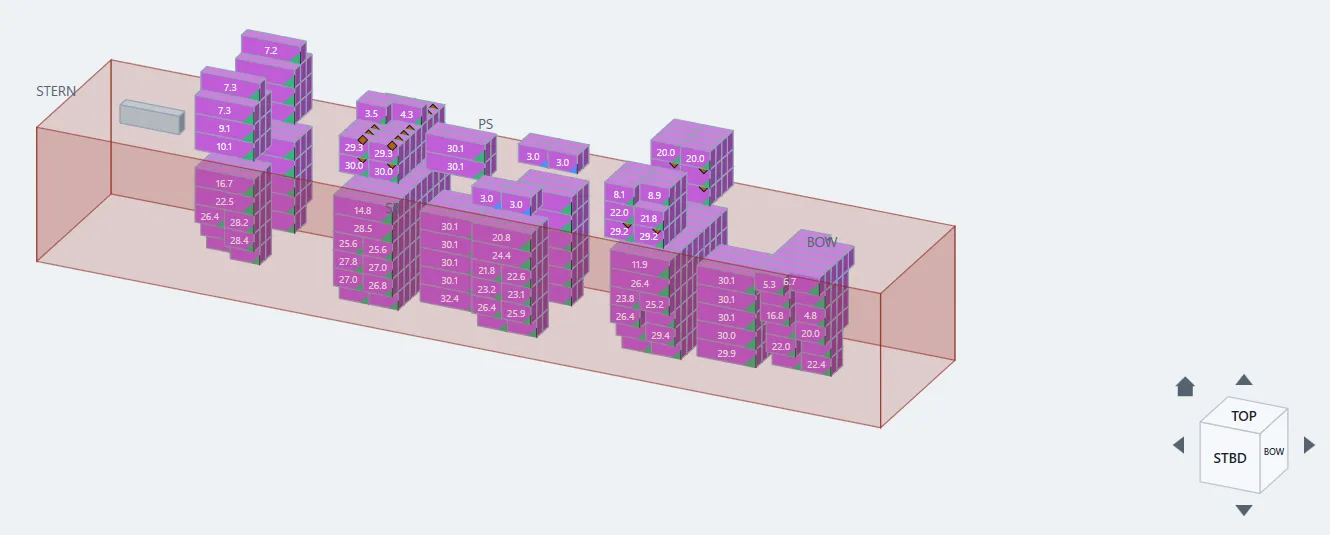
Isometric 3D view with each container’s weight on its face, the port-of-loading corners and the view cube
3D

Weights in 3D, and a view cube

Gross weight on each container’s face and the loading port as a corner mark. A view cube turns with the ship — a face for straight on, a corner for isometric, the house for the default — and stays smooth on a full ship.

A terminal package

For terminals and ports that see a new ship every day: nothing to set up. Each incoming BAPLIE builds the ship it describes, under its own name, and the call is worked as usual — Fill ship, work list, exports.

Every declaration checked

Each dangerous goods declaration on a box is read, checked, segregated and written back. A missing packing group or flash point is reported; a corrected one goes out corrected.

Fill ship says what it puts first

Each stowage option lists what it holds as a rule and what it weighs. Fewest cover lifts keeps one port per hatch panel — on one real load, panel lifts fell from 52 to 40 with no restow.

Unstow to refill

Take the stow off — at every call or one — and let Fill ship stow it again. Locked boxes and ticked moves stay; one Ctrl+Z undoes it.

A run of restows, a click each

Lift out, Put here and Keep on board as click modes on the bay plan, with a counter. Dragging a box already aboard asks first.

Arrival plans read as arrivals

A BAPLIE discharging everything at its own port opens on arrival there, load ports first. Bay plan colours follow the condition: discharge on arrival, load on departure.

Cargo tally and a fuller DG manifest

A cargo tally and a DG manifest closing with weight by class. New findings for out-of-gauge over the side, exposed reefers and outboard marine pollutants.

Checks

Blocking, warning or note — for every call at once.

Every rule can be switched off or re-graded, except the physically impossible. An accepted finding is recorded with the reason and who decided, and Before you send this gathers what is still open.

Cells and stacks

Wrong size for the cell, 20/40 ft conflicts, nothing underneath, tier count, stack height and weight — per bay, hold and deck.

Ship and voyage

Deadweight, reefer power, overstow in stacks and under covers, planned shifting and its cost, ports outside the rotation.

Dangerous goods

IMDG segregation in stowage units for every declaration on a box, with the DG list, the Document of Compliance check and the DG map.

Data exchange

Speaks the messages terminals send.

One message per call for the whole rotation in one step, each addressed to its terminal by code. Round voyages are handled, and every plan keeps its original messages byte for byte.

EDI and imports

  • BAPLIE 1.4 – 2.2 — read 1.4, 1.5, 2.0, 2.07 and 2.2, write 1.5, 2.07 and 2.2 (3.0 read as a preview), segments in the order terminal systems check; unknown segments are kept and written back
  • MOVINS — loading instructions for the terminal in the D.95B / SMDG 2.0 layout; incoming instructions applied to a call, or a new plan started from one
  • COPRAR — the work order of a call, with bookings, seals, reefer and dangerous-goods data
  • COARRI — what the terminal actually did, compared with what the plan expected
  • VERMAS — SOLAS verified gross mass — written, and compared with the plan weights
  • Excel and CSV — terminal load lists with saved column-mapping templates

Messages terminals accept

BAPLIE and MOVINS written with the segment order and codes a terminal’s system places a message by, matched to messages DP World accepted.

45 ft containers

Stowed only where the ship’s 45 ft plan allows, with their own stack weights; Fill ship puts a 40 ft under each one.

Imports that read the stow

Cargo standing under the departure port’s cargo is recognised as already aboard, and its port drawn into the rotation. Duplicate numbers keep every box.

The ship’s own containers

Equipment that belongs to the ship stands locked in its cells at every call, outside every cargo figure and message.

Working the list

The cargo table works like a spreadsheet. Special amend finds a pasted column of numbers; the bay plan’s right-click discharges, rolls or re-routes.

Before you send this

Everything still open across the voyage in one list, Must fix and Check. An export asks first while anything must be fixed.

Loading board

Profile, plan and cross-section linked over one position: click one and the others follow. Drag a frame round cargo to select it.

Command console

Ask or change the plan in one typed line, with the same rules and undo as the mouse. Commands can be chained and saved as scripts.

Container status at a call

Hold boxes for customs, papers, DG approval or damage, roll them or keep them on board. Work lists are ticked off move by move.

Discharge sequence and restow advice

What is lifted at a call and in which order, hatch covers included, each line saying why. Boxes in the way get a better place.

Commercial side

A password-protected Finance menu: contract rates, agreed freight, break-even utilisation, budget against outcome and a voyage result.

Several planners, one file

Plans in a shared folder with two locks — stowage and money — so planning and finance work at once, and a note carries the shift change.
A stowage planner, not a loading computer. Container Planner does not calculate stability, GM, shear forces, bending moments, trim or lashing — every printed page says so. For the approved loading condition, use it together with ShipLCOM.

System requirements

  • Windows 10 or 11, 64-bit, .NET 10 desktop runtime
  • About 15 MB — plan files are typically a few hundred KB
  • No server, database or internet — also when shared on a network folder
  • No administrator rights needed to run; multi-monitor and high-DPI supported

Planning container feeders or a liner service?

Tell us your ships and rotation — we build the vessel models from your cell plans and run a test voyage on one of your own BAPLIE messages.

Request a demo